If you have never built a Google Site before, here is the good news. You do not need to be techy to do it, and once it is set up, it can run for you all school year.
I want to tell you how I started using Google Sites, because it solved a real problem for me, and I think it can solve one for you too.
Why I Built My First Google Site
When I moved into a technology teacher role, I knew I was going to be teaching kindergarten through fifth grade on a seven day rotation. That means I might only see a student for about eighteen hours a year. I needed a way for every single one of those kids, from a five year old to a fifth grader, to walk in and know exactly what to do without me repeating directions all day.
That is what got me building my own classroom website. I built a Google Slides dashboard with buttons, and then embedded that inside a Google Site. One link. That was it.
I used a shortened Bitly link, our tech team turned it into a shortcut icon, and it got pushed out to every desktop and Chromebook in the building. I even got to design my own icon so kids would recognize it as our class site. Kindergarten through fifth grade, they open the desktop, click the icon, and land right on our home page.
From there it is simple. My K-2 students click a shape or number to get to their page. My third through fifth graders click labeled buttons, typing practice, assignment, and a button for when they are finished. Everything is connected, everything is the same every single time they log in.
Our school's tech team noticed the difference too. Other tech teachers had to push files out to every computer and manage a mess of individual documents. I just needed one link.
Different Ways to Use a Google Site in Your Classroom
Once I saw what a class site could do, I kept building more of them for different learning experiences. Here are a few ideas, not a how to, just ways I have used mine or seen other teachers use theirs.
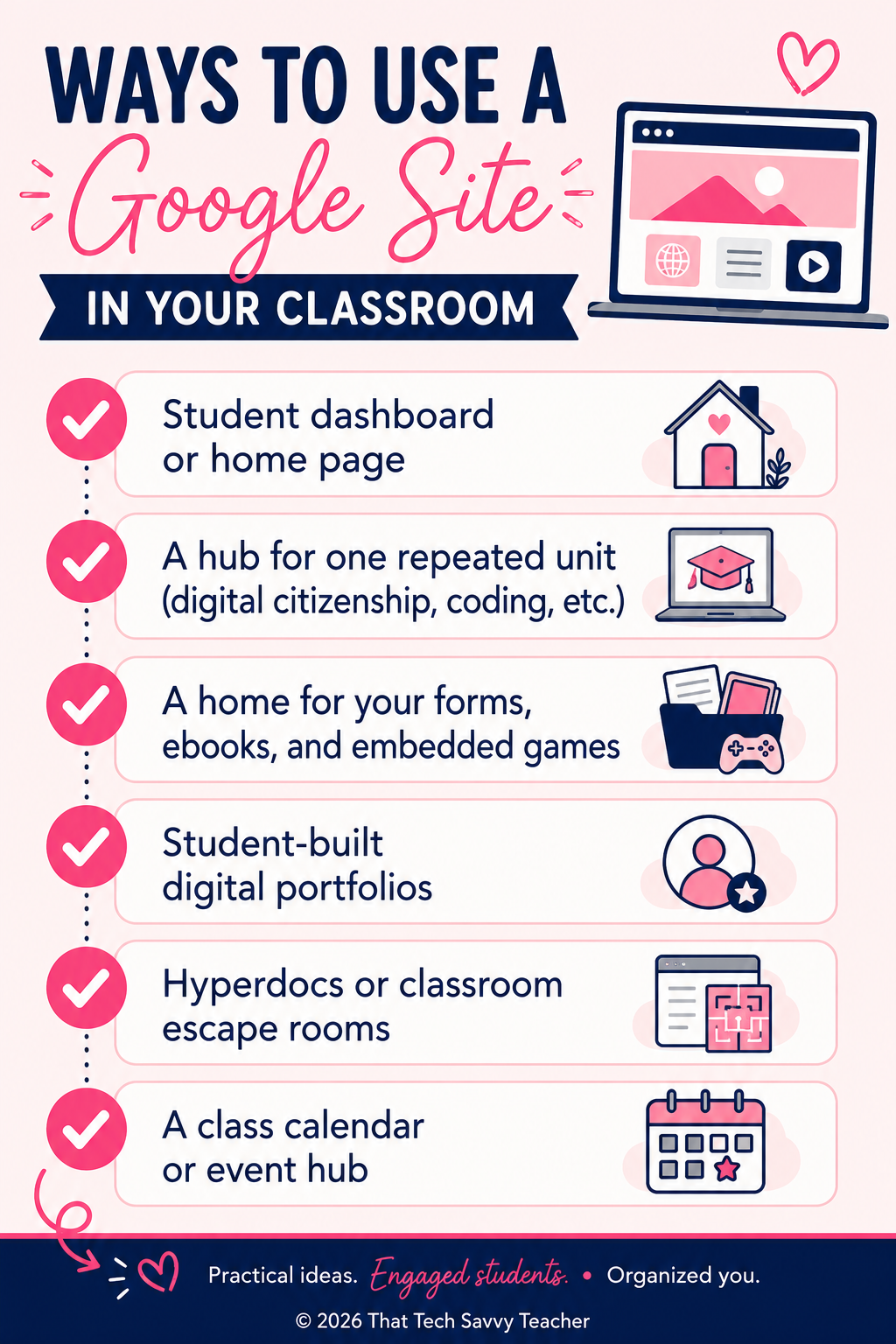
A student dashboard or home page. This is where mine started. One site, one link, and every student knows how to navigate it independently.
A unit specific site. I teach digital citizenship every year, so I built a Google Site just for that unit. I did the same for coding. Any unit you repeat year after year is a great candidate for its own simple Google Site you can reuse and update.
A home for everything you have created. My tech units site holds my Google Forms, ebooks I have made, and games I have built in tools like Wordwall or Blooket, all embedded right on the page. Instead of hunting through Google Drive folders every year, I go back to the same site and everything is there.
Digital portfolios. My fifth graders build their own Google Sites as digital portfolios at the end of the year. They learn to link their own work, upload favorite assignments, and build something that is truly theirs. It is one of my favorite lessons of the year.
Hyperdocs and escape rooms. I have seen teachers use Google Sites as the home base for a hyperdoc, linking out to activities, videos, and student work in one place. Others have used them to build classroom escape rooms, with pages that unlock the next clue. If you can link it, you can build it.
A class calendar or event hub. A Google Site is also a great place to keep a class calendar, special events, or details for something like a school event or an extracurricular activity, all somewhere parents and students can find it without asking you again.
A lot of teachers do not realize this tool is sitting inside Google Workspace already, free, and ready to use. If you already use Google Classroom, Google Docs, and Google Slides, you already have everything you need to build your own site.
Getting Started
You do not need to build all of this on day one. Start with one simple site, maybe a home page for your class or a unit you teach every year. Google Sites has templates in the template gallery to get you going, and you can pick a layout and custom theme that fits your classroom.
If you want a full walkthrough, I have a course called Google Sites Made Simple that walks you through building your own site from scratch, step by step, no tech background needed. I also have a video on my YouTube channel that gives you a look at how mine works.
FAQ
-
No. If you can use Google Docs or Google Slides, you can build a Google Site.
-
Yes. Google Sites has privacy settings so you can control who can view your site, whether that is just your class, your school, or the public.
-
Yes, if you set it up that way. This is exactly how my fifth graders build their digital portfolios.
-
No. If you already have a Google Workspace account through your school, Google Sites is already available to you at no extra cost.
That one link, one icon, one home page did more for my classroom than any complicated system ever could. If you are looking for a way to make your own classroom feel just as simple for your students, a Google Site might be the easiest thing you build all year.
