Easy Digital Citizenship Activities for K–2 (That Actually Work in Real Classrooms)
If you teach kindergarten, first grade, or second grade (or if you're a K–5 technology teacher like me), you already know that digital citizenship isn't just a topic to check off a list. It's something we need to be talking about all the time, especially with our youngest learners.
The digital world moves fast, and little kids are navigating it earlier than ever. They're using digital devices at home, watching videos, playing online games, and sometimes clicking on things they absolutely should not be clicking on. That's why digital citizenship skills aren't just "nice to have." They're essential, and they need to start in kindergarten.
In this post, I'm sharing easy digital citizenship activities I actually use with my K–2 students, practical safety rules every young student needs to know, and tips for weaving digital citizenship lessons into your school year without adding a single extra thing to your plate.
Digital Citizenship Is Not a Unit. It's a Habit
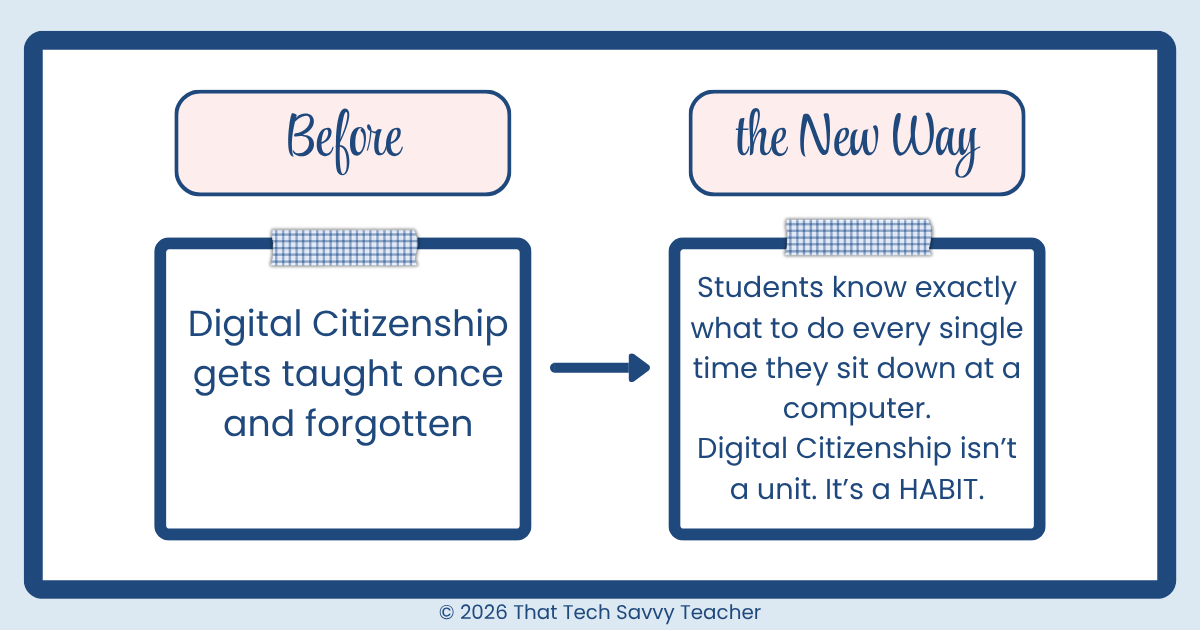
Here's something I say to every teacher I work with: digital citizenship cannot be confined to one lesson or one week.
Yes, Digital Citizenship Week is a great awareness opportunity. Yes, Common Sense Education has a phenomenal digital citizenship curriculum. But if we teach it once and move on, our youngest students won't retain it. Young people need repetition, connection, and real-life examples before concepts stick.
Think about how we teach fire safety. We don't do it once and hope for the best. We revisit it, practice it, and reinforce it throughout the year. Digital safety and responsible digital citizens are built the same way.
The good news? Reinforcing digital citizenship concepts doesn't have to be a whole lesson every time. It can be a two-minute conversation. A quick reminder before they open their Chromebooks. A question you ask during a lesson: "What would you do if something popped up on your screen that didn't look right?"
That's real digital citizenship education.
The Most Important Digital Citizenship Rules for K–2 Students
Before we get into activities, let's talk about the non-negotiables: the safety rules that every K–2 student needs to hear over and over again.
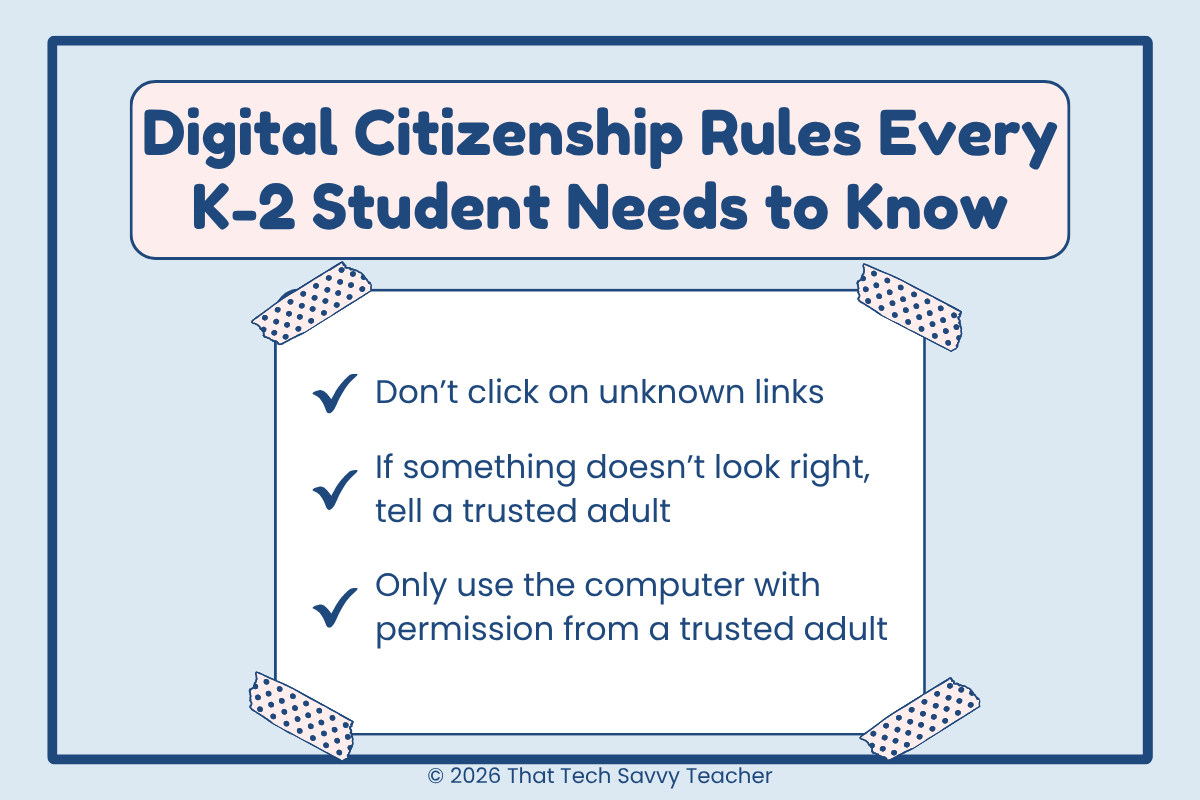
These are the three things I reinforce constantly with my young students:
1. Don't Click on Unknown Links
Young students are naturally curious, and that's a beautiful thing, but it also means they'll click on just about anything that looks interesting. Teach them early: if you didn't get it from a trusted adult, don't click it.
This is one of the most important fundamentals of digital citizenship for young learners because it protects them from accidentally downloading something harmful, landing on a site that's not appropriate, or even falling for a phishing attempt (yes, even kids encounter these now).
2. If Something Pops Up That Doesn't Look Right, Tell a Trusted Adult
Pop-ups, error messages, unexpected videos, and ads that look like games are everywhere online. Kids need a clear, simple plan: stop, don't touch it, and go get a grown-up.
I tell my students: "Your teacher is always your trusted adult at school. Your parent or guardian is your trusted adult at home." This kind of language helps them know exactly who to go to, which removes the hesitation they might feel if something scary or confusing appears on their screen.
3. Only Use the Computer with Permission from a Trusted Adult
Not all content online is made for kids, not even content that looks like it's made for kids. Teach students that screen time on devices should always happen with a grown-up's knowledge and permission. This is especially important to reinforce with parents and guardians as a school-home connection.
Two Systems That Make Digital Citizenship Easier to Teach (and Live)
Two of the most practical systems I use as a tech teacher are ones I set up once and keep coming back to year after year. They serve very different purposes, but together they make a huge difference for both me and my students.
My Digital Citizenship Google Site: Teacher Organization at Its Best
When I first started teaching technology, I built a Google Site to organize all of my digital citizenship units, activities, and videos by grade level. I still go back to it every single year.
I don't use every piece of it exactly as I originally built it, but having that structure already in place means I'm never starting from scratch. It has been one of the best things I've done for my own sanity as a tech teacher. No reinventing the wheel every year. No scrambling to remember what I did with a certain grade level last time. It's all there, ready to go
This is a teacher-facing resource my own personal planning hub. But the second system? That one is all about the students.
The Student Websites Dashboard: A Daily Classroom Routine
My students have a websites dashboard that is part of their everyday routine in my classroom. When they finish their activity for the day, they know they can visit websites from a pre-approved list that I have put together specifically for them.
The sites are organized by grade level bands: K–1, 2–3, and 4–5. That way, younger students aren't accidentally landing on something meant for older kids, and everyone has age-appropriate options ready to go.
My students know that any site on that dashboard is safe for them because I chose every single one. They aren't searching the open internet. They aren't clicking on unknown links. They are making choices within a system that I built for them, and that is exactly how responsible technology use becomes a habit rather than just a rule.
This is such a simple way to model digital citizenship in action every single day without adding a single extra lesson to your plate.
Just know that having a pre-approved list of free sites is one of the most powerful digital safety moves you can make as a teacher.
(This Websites dashboard actually lives on my “HowdTech” Google Site that I use to run my classroom. You are more than welcome to take a look at how that is set up.)
Digital Citizenship Activities for Kindergarten
Kindergartners are just beginning to understand what it means to live in a digital world. At this stage, digital citizenship lessons should be simple, visual, and connected to things they already understand, like kindness, asking permission, and following rules.
Here's how I structure my three-week kindergarten digital citizenship unit:
Week 1 focuses on the concept of being online and understanding what a computer or digital device is used for. We talk about what it means to be a good digital citizen in simple terms — being kind, being safe, and asking a trusted adult for help.
Week 2 introduces the idea of private information. Even kindergartners can understand that their name, address, and phone number are not things to share with strangers online — just like they wouldn't tell a stranger those things in real life.
Week 3 brings it all together with a focus on what to do when something doesn't feel right. We practice the phrase: "Stop, don't touch it, tell a trusted adult." Role-playing this scenario makes it memorable and gives students a concrete plan.
👉 You can see my kindergarten lessons here:
Digital Citizenship Activities for 1st Grade
First graders are ready to go a little deeper. They're starting to use digital tools more independently, which means the concept of digital citizenship becomes even more important.
My first grade internet safety series spans three weeks and builds on what students learned in kindergarten. We talk about what it means to be safe in the online world, how to recognize something that might not be appropriate, and who to go to when something feels wrong.
The lessons use kid-friendly language and interactive elements that keep first graders engaged without overwhelming them. We revisit the idea of personal information, introduce the idea of online strangers, and continue building the habit of checking with a trusted adult before clicking anything new.
👉 You can see my 1st grade lessons here:
Digital Citizenship Activities for 2nd Grade
By second grade, students are ready to explore more nuanced digital citizenship topics, and honestly, this is one of my favorite grade levels to teach because they ask the best questions.
Here are three of the activities I use with my second graders:
Be Kind Online: Digital Citizenship Coloring Page
One of my favorite quick activities is a Be Kind Online digital coloring page that doubles as a conversation starter. Students color while we talk about what it means to treat others kindly in the digital world, because digital drama is real even for 7 and 8-year-olds.
Genially Interactive Lesson
I use a Genially interactive presentation to take students through key digital citizenship concepts in a fun, engaging way. The interactive format keeps students focused and gives them a sense of choice as they navigate through the content.
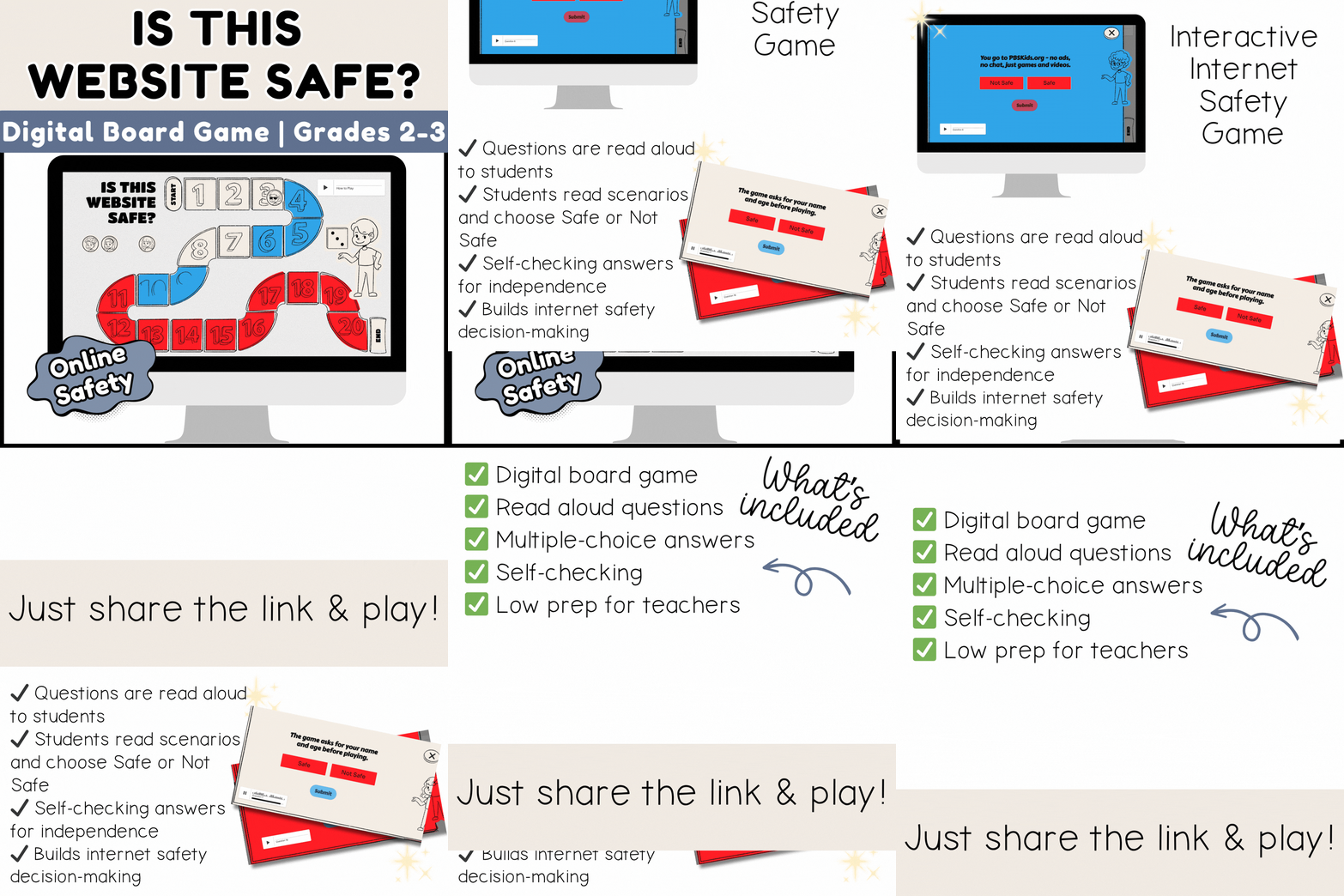
Password Safety Activity
Second graders are often starting to create their own passwords for school accounts, which makes this the perfect time to teach them about personal information and password safety. This Canva-based activity walks students through why strong passwords matter and how to create one they can actually remember.
👉 Password Activity for Second Graders
I've also got a couple of additional YouTube lessons that pair perfectly with these activities:
How to Weave Digital Citizenship Into Your Everyday Classroom Routine
You don't need a digital citizenship curriculum or a dedicated lesson every single week to teach these concepts well. Here are some simple, low-lift ways to keep these concepts alive throughout the school year:
Before students open devices: Take 30 seconds to remind them of your approved sites list and the rule about not clicking unknown links.
When something goes wrong: Use it as a teaching moment, not a discipline moment. If a student accidentally clicks something they shouldn't have, praise them for telling you and walk through what to do next time.
Connect to real life: Talk about digital citizenship the same way you talk about other social-emotional learning. Being kind online is just an extension of being kind in real life. A digital trail is just a digital footprint, just like the footprints they leave in the mud on the playground.
Make it grade-level appropriate: A kindergartner needs very different language than a second grader. Adjust your vocabulary, your examples, and your expectations based on where your students are developmentally.
Involve families: Send home a simple note or include digital safety tips in your newsletter. When the messages are consistent between school and home, students are far more likely to internalize them.
Recommended Free Tools and Resources for Digital Citizenship
If you're looking for more support beyond your own lessons, these are the tools and resources I recommend most:
Common Sense Education: Their free digital citizenship curriculum is one of the best out there. They have lessons organized by grade level with interactive lessons, videos, and discussion guides. It's genuinely one of the best free digital learning platforms available to teachers.
Common Sense Media K–5: Specifically designed for elementary students, with age-appropriate content around media balance, media literacy, and screen time.
Google Sites: A simple, free way to build your own student-facing hub where you can link all your approved sites by grade level.
Genially: Great for creating interactive presentations that feel like online games to students. I use it regularly for my K–5 digital citizenship lessons.
YouTube: Building a grade-level playlist of vetted videos is a simple way to control what students watch while keeping learning fun.
Frequently Asked Questions About Digital Citizenship for K–2
What are the core topics of digital citizenship for young students? For K–2 students, the most important digital citizenship topics are online safety, understanding personal information, being kind online, understanding screen time and media balance, and knowing what to do when something goes wrong online.
What are some examples of digital citizenship in action for little kids? Examples of digital citizenship for young learners include not sharing their name or address online, asking a trusted adult before clicking a link, using kind words in digital messages, and staying on approved websites during technology use.
How do I teach digital citizenship without a full curriculum? You don't need a full digital citizenship curriculum to teach these concepts well. Start with the three core safety rules (no unknown links, tell an adult if something seems off, ask permission before using devices). Reinforce them regularly and connect them to real-life situations. Small, consistent conversations are more effective than one big unit.
What is a digital footprint, and can I explain it to young kids? Absolutely. A digital footprint (or digital trail) is simply everything a person does or creates online. For young kids, I compare it to leaving footprints in sand — every step leaves a mark. That's a concept even kindergartners can understand.
Should K–2 students learn about fake news and credible sources? Not in depth — that's more developmentally appropriate for older elementary students. However, you can lay the groundwork by teaching students that not everything they see online is true and that they should always check with a trusted adult before believing or sharing something.
What's the difference between digital literacy skills and digital citizenship skills? Digital literacy skills are the technical skills students need to navigate digital tools — things like typing, using a mouse, or navigating a website. Digital citizenship skills are about how students behave and make decisions in the digital world. Both are important, and both start in kindergarten.
Ready to Make Digital Citizenship Easier to Teach?
If you're a K–5 technology teacher or a classroom teacher who wants ready-to-use digital citizenship lessons without having to build everything from scratch, the Ready to Click Tech Lab is for you.
Inside the membership, you'll find student-facing digital lessons, teacher-friendly resources, and a growing library of tech activities organized by grade level so you spend less time searching and more time teaching.
👉 Learn more about the Ready to Click Tech Lab here
And if you want to see exactly how I organize my student website dashboard by grade level, drop a comment below and let me know. I'm happy to share that system with you!
Pin this post for later so you always have these K–2 digital citizenship activities close by.