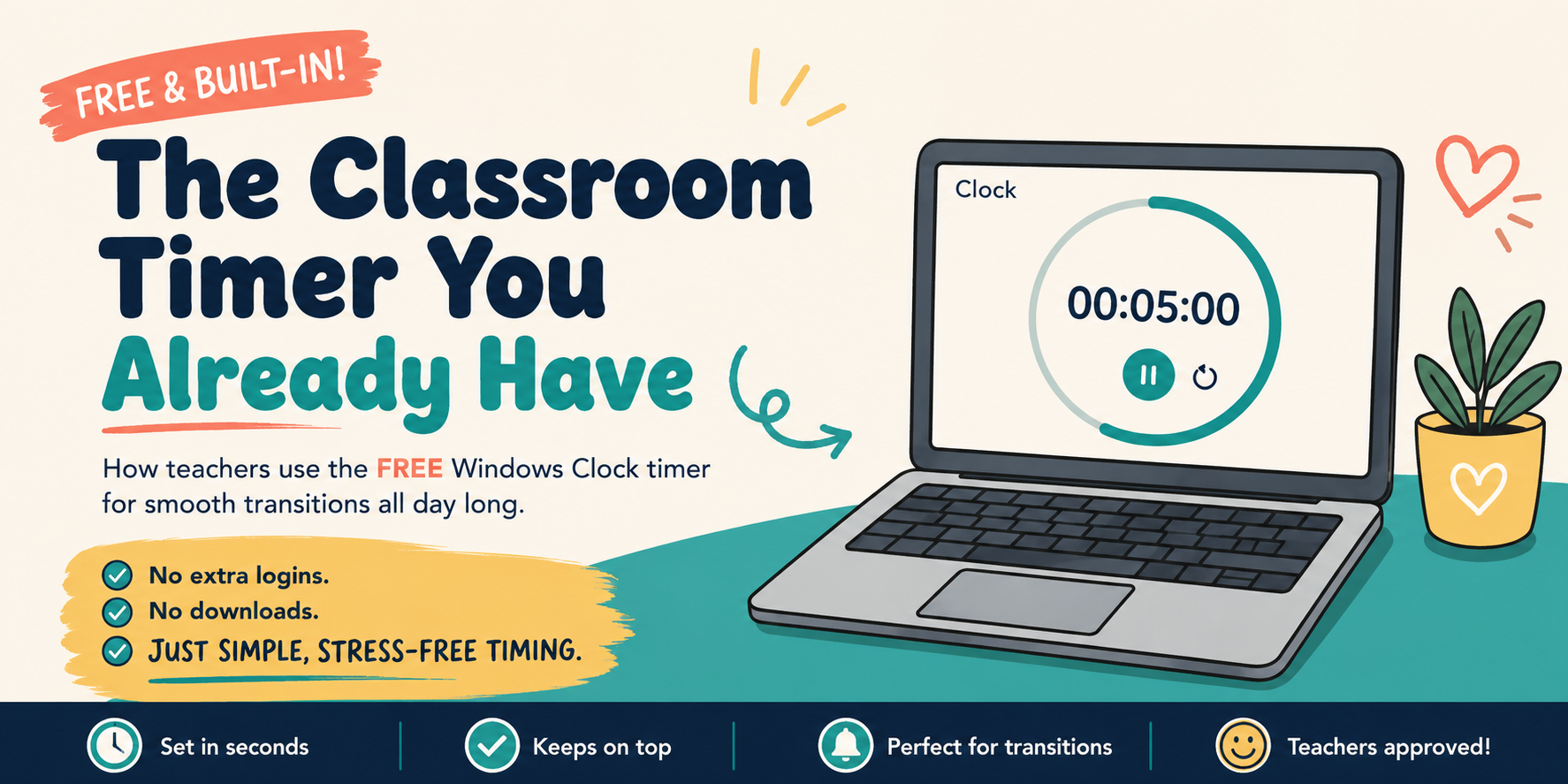
When I moved from teaching one class all day to running a full rotation of different classes back to back, I needed a visible timer telling me and my students when to wrap up, when to clean up, and when to transition to the next activity. My first instinct was to run all of that from my phone. That lasted about a day and a half. It felt overwhelming, and as a teacher, your phone is not exactly where your attention is supposed to be during class.
So I looked up "clock" on my own computer, mostly just to see if it was even possible. It was. A completely free classroom timer, already built into the same screen I was using all day. A teacher actually asked me about this years ago, and I had no real answer for her. I searched around at the time and could not find anything written up on it, which is part of why I wanted to put this together now.
Why a Visible Timer Matters for Classroom Management
Transitions eat into real instructional time. Without a clear visual cue, "five more minutes" can quietly turn into fifteen, especially across group work, station rotations, or independent work time. A visible countdown timer sets clear expectations up front. Students can see exactly how much time is left, so you are not the one repeating yourself every few minutes.
This matters more with younger students, who often need a visual cue to understand an abstract amount of time, but older students benefit from it too, especially during longer tasks, exam timing, or silent reading.
How to Set a Free Online Classroom Timer (Windows Clock App)
You do not need to download anything or sign up for a free online timer tool. If you are teaching from a Windows computer or interactive whiteboard, a free classroom timer is already sitting in your taskbar.
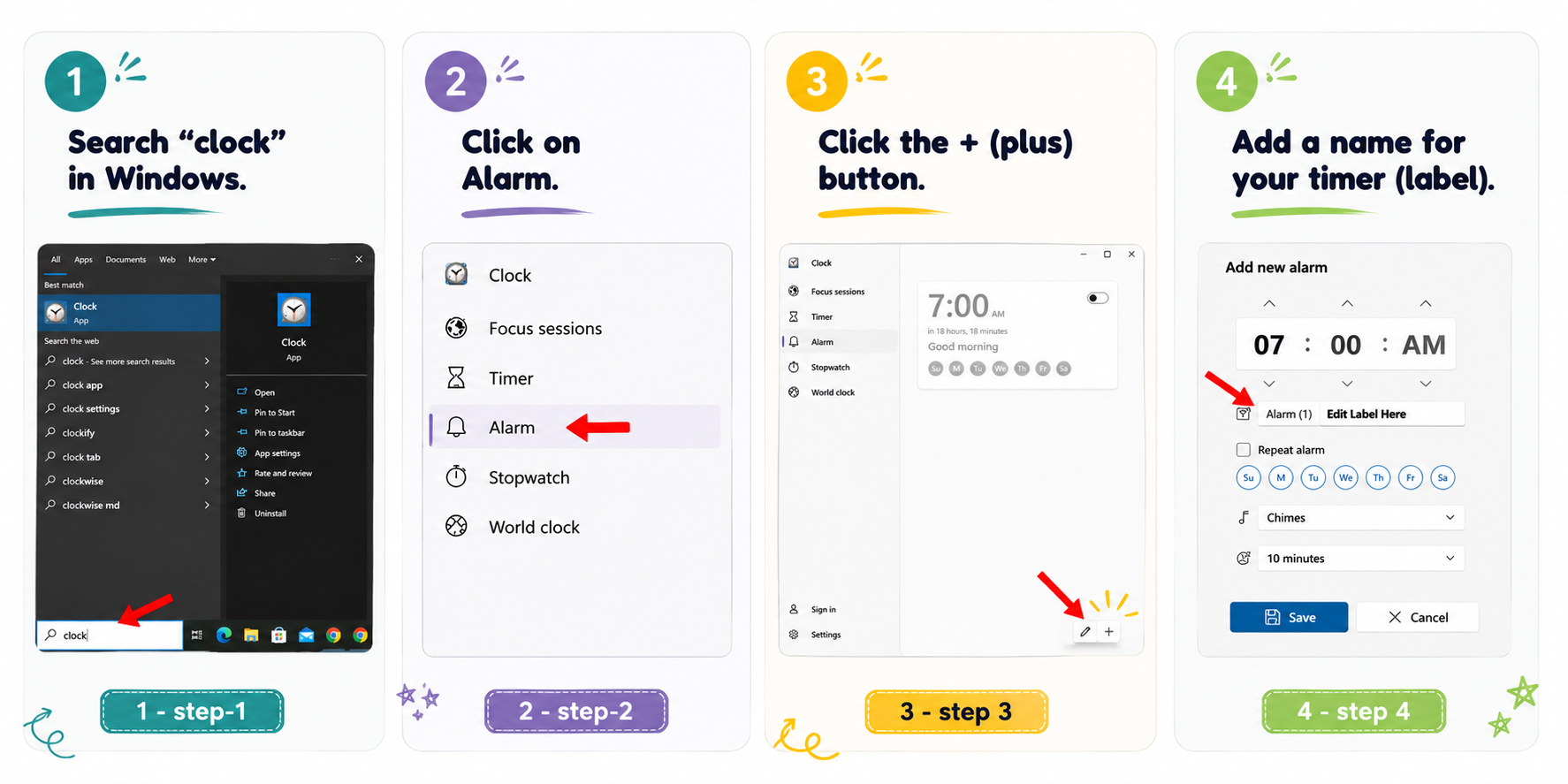
Go to your taskbar and search for "clock." Open the Clock app.
You will see tabs across the top: Timers, Alarms, Stopwatch, World Clock, and Focus Sessions.
Click Timers for a visible countdown timer your students can watch. Choose one of the default timers, like a 2-minute countdown or a 10-minute countdown, or set your own custom time.
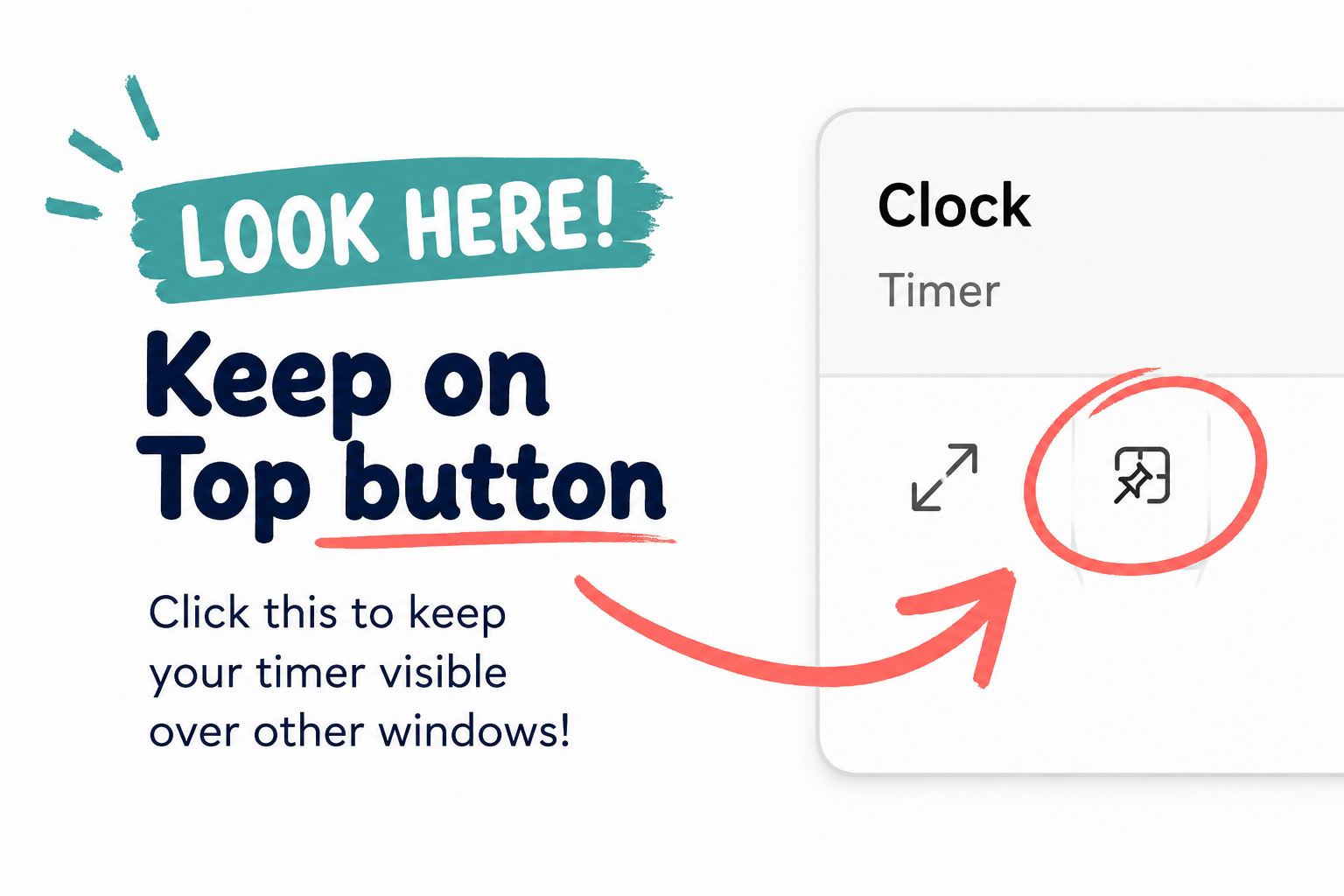
Press start, then look in the top right corner of the running timer. There is an option to keep it "on top," which pulls it into a small fullscreen mode that stays visible over whatever else is on your screen. This is the setting that turns it into a true visual timer for the whole class to see, not just something running quietly in the background.
For your own schedule, click over to Alarms. Click the plus sign to add a new one, set it for the times you need Monday through Friday, and label each one clearly ("Clean Up," "Line Up," "5th Grade Start"). Add as many as your day requires.
Where a Timer Like This Helps in Real Classrooms
A free classroom timer like this works for almost any timed classroom activity:
Group work and group activities, so every group gets the same amount of time
Station rotations, so transitions between stations stay smooth and on schedule
Brain breaks, with a clear visual countdown so kids know when it's back to work
Independent work time or individual work, where a minute timer helps students pace themselves
Exam timing, with a visible countdown so students can pace themselves through a quiz or test
The start of a lesson, as a visual cue that class time has officially begun
The goal is the same one every time: a clear, visible countdown that does the reminding for you, so you can focus on teaching instead of watching the clock.
The Sub Account Trick
Here is the part that actually saves you the most time. Log into the sub account on your panel and set those same alarms and labels there too. When a substitute logs in to cover your class, the alarms are already there, already labeled, and ready to go. No explaining your routine, no sub scrambling to figure out your schedule. It is the same instinct behind Fast and Easy Sub Plans: build it once, so a sub, or you on a rough morning, can walk in and just go.
If You Want a Free Online Classroom Timer Instead
A lot of teachers use Classroomscreen.com as their daily start-up display, and it has its own Timer and Visual Timer widgets built in, along with a fullscreen button to make it a true full-screen mode display for the class. On the free version, you will need to reset your timer settings each time you open it. On a paid Basic or Pro account, you can save your whole screen setup, timer and alarm sound choice included, so it is waiting for you, and for a sub, the next time you open that saved screen.
It is not quite the same as a native alarm clock running Monday through Friday on its own, but saving a screen gets you close to that same "already set up" feeling, and it is a solid free online classroom timer option if Classroomscreen is already part of your routine.
FAQ
-
No. If you are on a Windows computer or panel, the Clock app is already built in and free.
-
Mac has a similar built-in Clock app with alarm and timer features, though the steps to get there will look slightly different.
-
Yes. Use the "keep on top" option on a running timer to pull it into fullscreen mode so it stays visible over anything else on your screen.
-
Use the Timer and Visual Timer widgets there, and save your screen setup if you are on a paid account so it holds your settings for next time.
Building a system like this once, on the tool you already use every day, is exactly the kind of thing Teacher Systems Lab GPT is built around. If a rotation schedule or a repeatable classroom system is something you have been meaning to get in place, that is where to start.
What is one transition in your day that could use a visible timer? Try setting one up this week and see what changes.
