Simple Google Docs and Slides Tutorials for Students
You teach a skill, the class gets it, and two days later a student is stuck on how to center a title. Or change a font. Or they were out the day you covered it, and now they're waiting with a hand up while you help someone else.
Anyone who has run a computer project knows how fast these small questions add up. The skills are basic, and that is the frustrating part. They feel like something students should already know, yet they come up again and again.
Why Teaching a Skill Once Doesn't Stick
Formatting is not hard, but it is easy to forget. Students only change a font or center text when a project calls for it, so the memory fades between projects. Add absences and a full room of learners, and the teacher turns into the help desk.
I teach K-5 technology to over 800 students on a 7-day rotation. I can only help so many students at a time, so I needed a way for them to get answers without waiting for me.
Where These Tutorials Came From
I started making them for my warm-ups. Warm-ups are meant to be done independently, and that raised a question. What happens when a student is working on a warm-up and can't remember how to do one of the steps?
So I made short how-to videos to go with my warm-up line. Once I had them, I realized they were useful well beyond warm-ups. Every teacher has taught a lesson, assigned a project, and then had a student forget a step, miss the lesson, or not understand it the first time.
What I Learned Teaching Second Grade
When I taught second grade, I told my students that the way to know you have really learned something is that you can do it without me. I still believe that. As a teacher and as a parent, I want kids who can figure things out on their own.
Short videos support that. A student who can find an answer and watch a quick demo has practiced a life skill, and that skill matters more than any single formatting trick.
How the Google Docs and Slides Tutorials Work
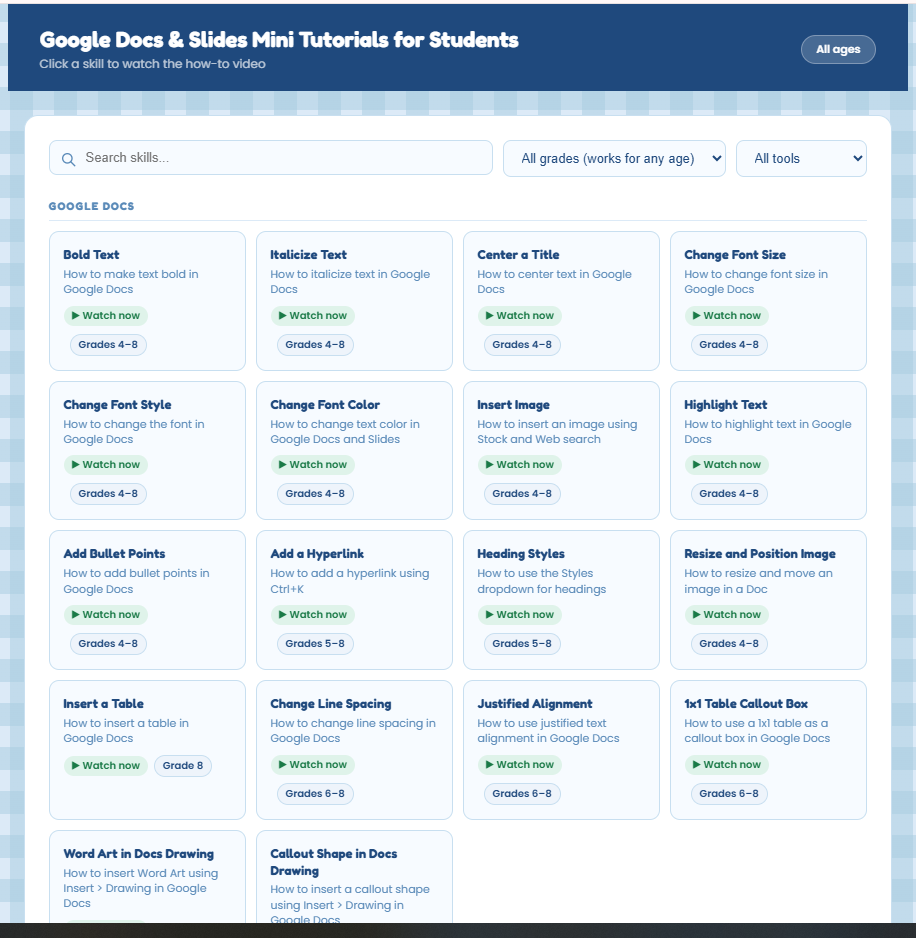
The Google Docs & Slides Mini Tutorials for Students is a dashboard of 32 short how-to videos. Students can search or filter by skill and by tool: Google Docs, Google Slides, or Concepts. Some videos run under 20 seconds, so nobody has to sit through a long lesson to find one answer.
In practice, it looks like this:
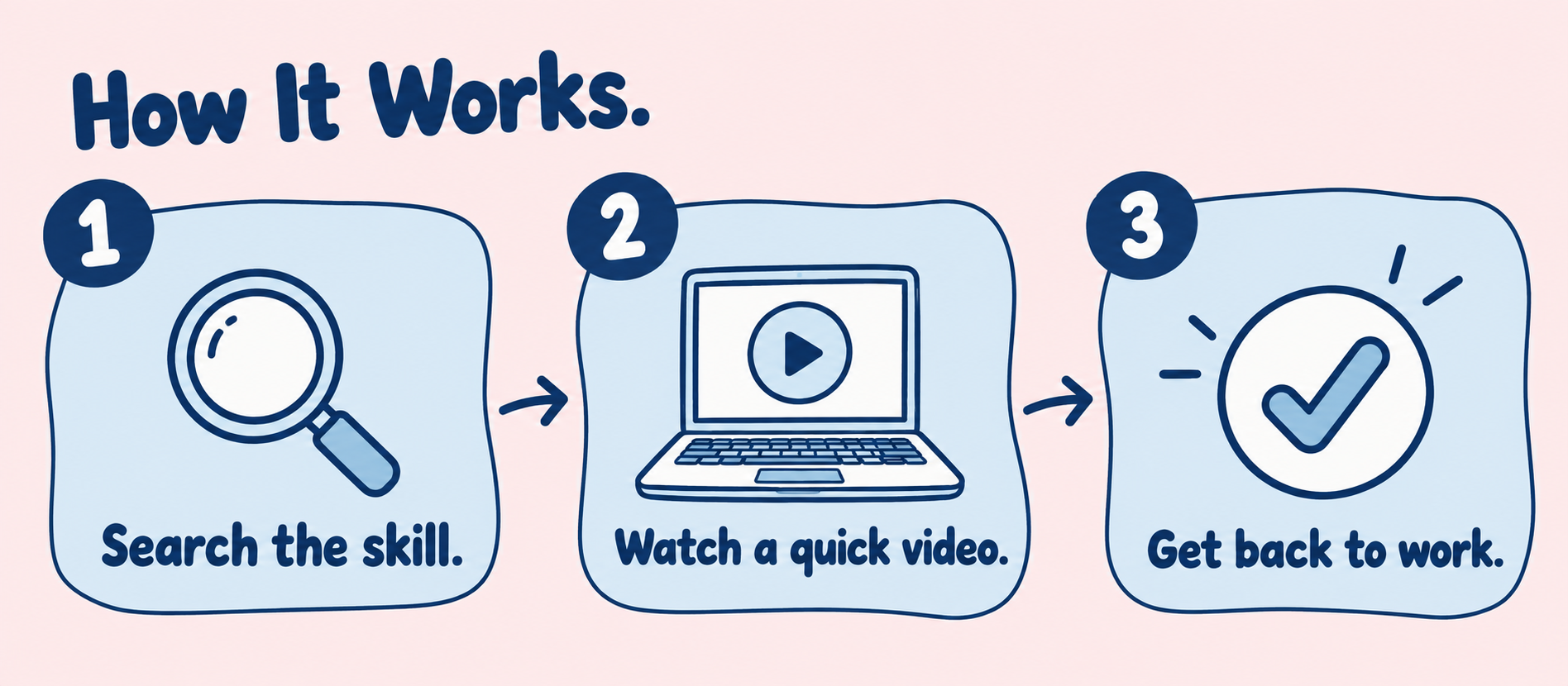
A student searches for the skill they need.
They watch a quick video and go back to their work.
They find the easy way to do it without raising a hand.
The tutorials are tagged for grades 4-8, but the skills apply to anyone learning word processing and slides, including adults.
Easy Ways to Use Them
Put the link where students already look. I keep mine in the top banner of my Google Site, labeled "more technology tips," so students can find it fast.
Use them on sub days. Students can look up the skill instead of asking someone who may not know the answer.
Help absent students catch up. A student who missed the lesson can find the skill and learn it on their own.
Pair them with warm-ups and projects. When a student forgets a step, the answer is one click away.
Teach Students How to Find the Answer
The most useful lesson here is not formatting. It is teaching students how to find a resource and how to watch a video to get what they need. I show my students where the tutorials live and how to use them, and then they can use that skill anywhere.
That is what independent learning looks like in a tech classroom. The teacher sets up the resource, and the students use it.
Get the Free Tutorials
The mini tutorials are free. Sign up with your email and you'll get the link to the dashboard: Google Docs & Slides Mini Tutorials for Students.
The list will keep growing. Right now there are 32, and I plan to add more, like copy and paste. It is easy to update, so new videos can be added over time.
Frequently Asked Questions
-
They are tagged for grades 4-8. The skills work for anyone learning word processing and slides, including adults.
-
The videos show Google Docs and Google Slides. Google and Microsoft tools are similar enough that students who understand the basics can usually work out the differences.
-
Yes. There are 32 now, and I plan to keep adding more.
-
It’s a link, so it can go anywhere you share links. I keep mine at the top of my Google Site.
-
The tutorials grew out of my warm-ups line. You can find those in my Warm-Ups and Bell Ringers category on TpT.
