6 Timing-Saving Tech Tips for Teachers (That Actually Work in the Classroom)
Let’s Be Honest: Teachers Need More Time ⏰
If you’ve ever looked up and realized your prep time disappeared before you even opened your lesson plans - you’re not alone.
Between student work, administrative tasks, classroom management, and a never-ending to-do list, it’s hard to find enough time in the school day for everything.
The good news? You don’t need to master 20 new tools to make a difference. These six tech tips for teachers are small changes you can use daily - and they’ve saved me a huge amount of time over the school year.
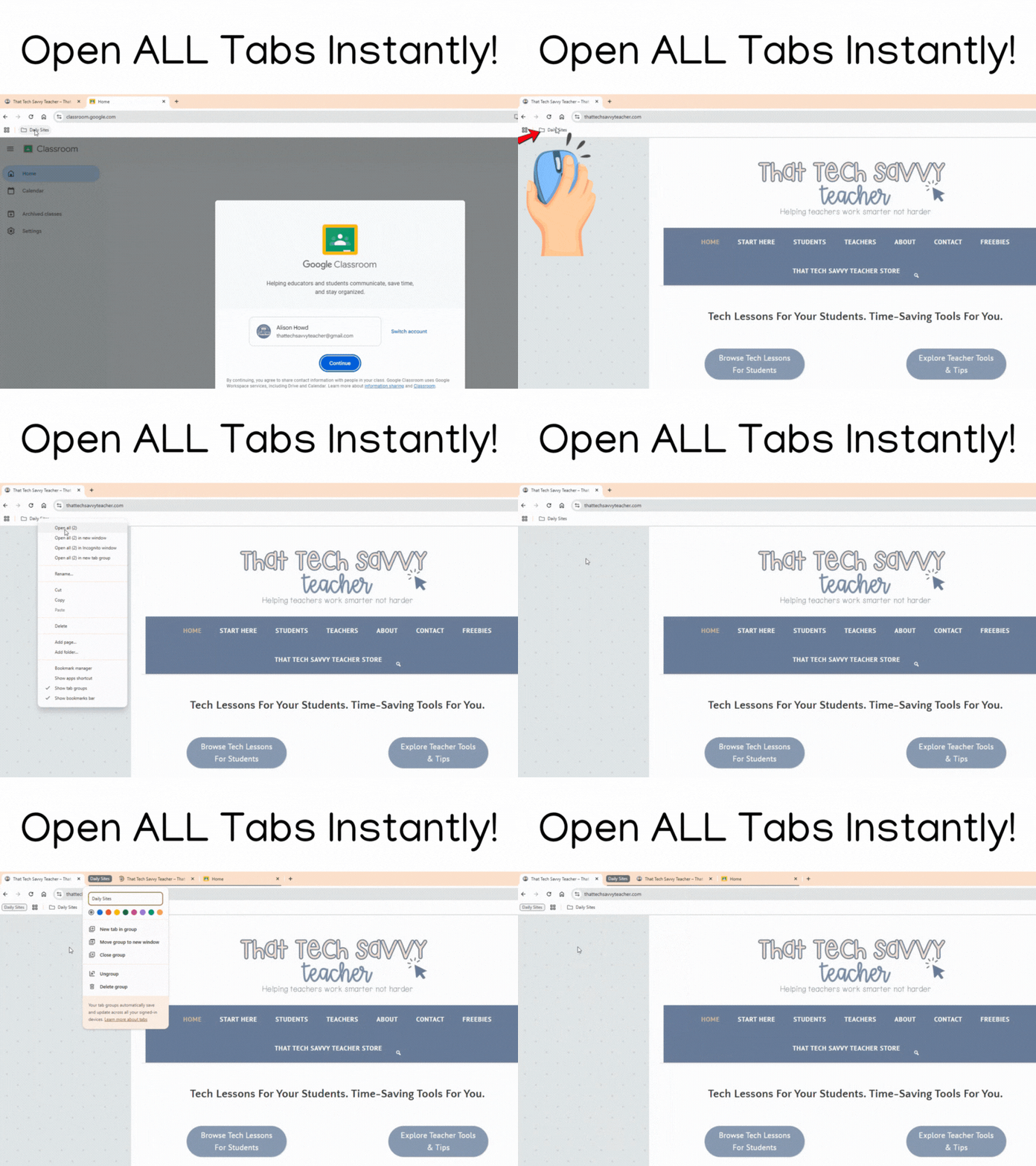
✅ 1. Bookmark Your Daily Sites and Open Them All at Once
I used to open my email, Google Classroom, lesson slides, calendar, LMS, and more - one tab at a time. Now, I’ve saved all those links in a bookmarks folder labeled Daily Sites in my browser.
With one right-click (or a scroll-wheel click), I open every tab I need for the day - instantly.
💡 Bonus tip: I also pin the tabs I use all day long - like my lesson dashboard or planning spreadsheets.
Just right-click the tab and choose “Pin” to keep it neatly tucked to the left and out of the way. It stays open, doesn’t take up much space, and is always just a click away.
This is one of my favorite time-saving tips. It cuts down on clicks and helps me start the school day with everything right where I need it.
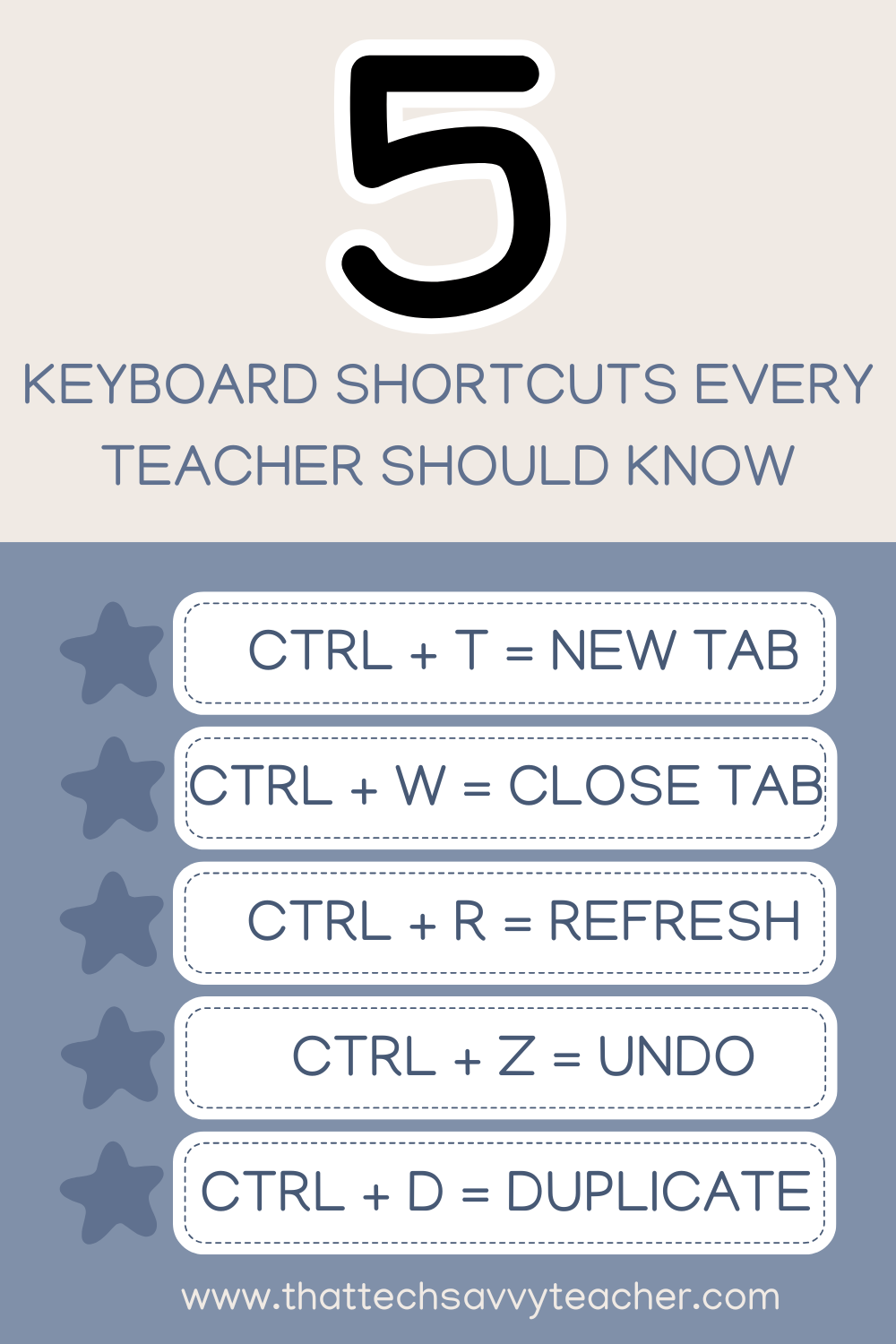
✅ 2. Use 5 Keyboard Shortcuts That Make a Big Difference
You don’t need to learn every shortcut - just the ones that save time every day. These are the ones I actually use all the time:
Ctrl + T → New tab
Ctrl + W → Close tab
Ctrl + R → Refresh
Ctrl + Z → Undo
Ctrl + D → Duplicate the selected item (slide, text box, row—you name it)
That last one is a game changer. If something’s already selected, Ctrl + D duplicates it instantly - no need to copy and paste. It’s one of my favorite shortcuts, especially in Google Slides or Sheets when I’m building something repetitive.
I also use the Tab key to move between fields, buttons, or sections on a page. Instead of reaching for my mouse and slowing down, I stay in keyboard mode and keep moving.
💡 Every time you take your hand off the keyboard to grab the mouse, you lose momentum. These shortcuts help you stay focused, save time, and get more done with fewer clicks.
✅ 3. Use AI to Help Build Lessons, Templates, and So Much More
AI is one of my favorite time-saving tools - it’s like having a super-organized assistant who never sleeps. There are so many AI tools to choose from. My personal favorite is ChatGPT, but there are so many options!
I use it to help with:
Curriculum mapping across the school year
Brainstorming lesson plan ideas by grade level or subject
Drafting rubrics I can customize
Building spreadsheets (even when formulas make my head spin)
Outlining or scripting videos for student learning or tutorials
Rewording directions or emails to be clearer and more parent-friendly
💡 AI won’t replace your voice - but it can help you save precious time and give you a solid starting point.
✅ 4. Build a Google Slides Dashboard for Students
This one has made a huge impact on both student engagement and my own classroom flow.
Instead of giving out links all day, I created a single Google Slides presentation with:
Daily instructions
Links to homework assignments or online resources
Self-grading quiz reminders
Exit tickets or virtual field trips
Rotations for small group work
I use a dashboard - like the one below - to keep everything in one spot for my students. I link it to assignments, videos, activities, and any resources they need for the day. It’s a simple system, but it makes a huge difference in keeping things organized and easy to update.
✅ 5. Use Google Drive’s Search Bar and Filters Like a Pro
Let’s be real - Google Drive can be a black hole. And while organizing folders is great in theory, here’s what actually saves me time: the search bar.
I use it all the time to find exactly what I need - lesson plans, digital resources, student work - without digging through folders.
Pro tip: Click the filter icon next to the search bar to narrow results by file type, owner, or last opened. It turns Google Drive into your own quick reference guide.
You don’t need to be ultra-organized - just know how to find things fast. That’s the real win.

✅ 6. Reuse What Already Works (Templates = Teacher Gold)
You don’t have to start fresh every week. One of the best ways to save time is to reuse what already works.
That might look like:
Copying last year’s lesson plans and updating them
Duplicating a Google Docs template for newsletters or classroom updates
Using the same weekly planner or to-do list structure
Saving your favorite websites and edtech tools in one central location
There’s no prize for reinventing the wheel. Reusing solid materials saves you time, reduces prep, and helps you stay focused on what really matters: your students.
👉 If you don’t have templates yet, I’ve created a free set of Google Docs templates for teachers that are fully editable and ready to use.
Final Thoughts: Saving Time Doesn’t Have to Be Complicated
When you’re managing student work, administrative tasks, and trying to squeeze in meaningful instruction, working smarter can make a big difference.
These six tech tips help me streamline my systems, reduce stress, and focus more on student learning and engagement - not just survival.
📝 Quick Recap: 6 Tech Tips That Save Teachers Time
Bookmark and open your daily sites with one click
Use 5 powerful keyboard shortcuts - and the Tab key too
Let AI support your planning and productivity
Create a Google Slides dashboard as a daily hub
Search smarter in Google Drive with filters and keywords
Reuse your best templates and materials
💡 Teacher Time-Savers — Weekly Newsletter
✉️ Free tips. Smart systems. Done-for-you tools.
✨ Want to save even more time?
I’ve put together a free collection of Google Docs templates for teachers - perfect for lesson planning, parent communication, and classroom organization. They’re editable, ready to use, and designed to help you work smarter, not harder.
Pin this for later! These 6 tips have saved me tons of time every week.
