How to Get Started as a New Technology Teacher (Tips, Tools, and Time-Saving Routines)
Starting a new job can be a whirlwind, but stepping into the role of an elementary technology teacher? That’s a whole new kind of adventure. Whether you're fresh out of the classroom, moving to a new school district, or switching roles mid-year, becoming the tech teacher means you’re suddenly in charge of a digital space, managing rotating classes, supporting different grade levels, and often responsible for hundreds of students across the school year.
But here’s the good news: you don’t have to figure it all out on your own.
In this blog post, I’m breaking down everything I wish I knew when I started - tech tools, classroom routines, digital citizenship lessons, login systems, organization hacks, and best practices for student engagement. Whether you’re in a computer lab or virtual classroom, these helpful tips are perfect for any new technology teacher looking for practical ideas and the easiest way to feel confident on a daily basis.
Why Routine Is the Best Way to Start Tech Class Right
If you take nothing else away from this post, hear this: ROUTINE. IS. EVERYTHING.
Routines reduce anxiety, create structure, and help individual students feel confident in their learning environment. It improves classroom management and sets the tone for a productive learning experience. Your students, especially younger students or those with IEPs or 504s, will thrive with a predictable structure. And honestly? So will you.
How My Tech Classes Run Each Day
My classroom runs like a well-oiled machine because every class, no matter the grade level, follows a consistent and predictable routine. From Kindergarten to 5th grade, students know exactly what to expect when they enter the tech lab. This structure helps create independence, saves time, and allows me to support students individually while the rest of the class works confidently.
Let’s walk through exactly how each grade level’s routine is set up:
Kindergarten–2nd Grade Technology Routine
Students enter and sit on numbered velcro sit spots on the floor.
I go over the day’s lesson on the screen. This is the exact thing they will see at their computers. I walk them through our lesson which is embedded on my Google Site.
For Kindergarten and 1st grade, the website is already open and ready for them, thanks to the previous class.
The layout and flow are the same every week to support younger learners and build independence.
Kindergarteners' End-of-Class Routine:
Click the "X" in the top corner to close the browser window.
Click once on the desktop icon.
Press "Enter" to reopen the website for 1st grade.
This is so much easier than trying to teach them to double-click, and they are proud of doing it on their own.
1st Graders' End-of-Class Routine:
Signing out of Google.
Turning off the monitors.
All of this builds routine and teaches responsibility—plus they’re learning valuable tech skills. What used to take up my time is now built into our class culture.
Login Tips for Primary Grades
For Kindergarten and 1st grade, students don’t use individual usernames or passwords. I use a shared login that’s easy to remember—this is the best way to avoid login delays and get straight to learning.
2nd Grade - Introducing Individual Logins
This is the first time students use their own login credentials.
I print login info weekly using a Google Sheets template that filters by teacher.
It’s ready-made and easy to cut into strips for each student. Takes just 10 minutes to prep each week.
For 3rd–5th grade students, I keep login notebooks in the back of the room. If a student forgets a password, I quietly write it on a sticky note. It’s a simple but powerful tool to support independent learning without interrupting class time.
3rd-5th Grade Technology Routine
Students walk in, go to their assigned computer, and log in immediately.
Start with 10 minutes of typing practice using a visual timer (another great way to increase student engagement). See the video below the exact timer I use for my students.
After that, they access their digital lesson (via Google Classroom) and follow along with a video tutorial I’ve created.
Their Google Classroom link is posted on my Google Site, so they simply click on their grade level, open the site, and everything they need is there.
They submit their student work in Google Classroom, then visit a Google Slides choice board with interactive games or collaborative projects for early finishers.
Why Google Sites Is the Most Important Tech Tool in My Classroom
If you're wondering what the best way is to run your tech classroom—it’s hands down using a Google Site as your class hub. I set mine up four years ago, and it’s the single most important thing that helps my classroom run smoothly.
I embed my Google Slides lessons directly into my Google Site, which allows me to update everything quickly and easily. The structure is incredibly simple, and my students from Kindergarten through 5th grade know exactly what to do. They come in, click on their grade level, and then click through the buttons in order. It’s seamless and the system truly runs itself.
My Google Site houses all of my Google Slides, links to lessons, timers, student tools, and weekly assignments. I’ve created icons on student desktops that launch the site with a single click—making it the easiest way for students of all grade levels to get where they need to be.
Because the structure is consistent across grade levels, students become incredibly independent. I update the site weekly, and everything runs itself—even when I have to be out. Subs often comment that my classroom practically runs itself because the routine is so solid and students know exactly what to do. If questions come up, my students know they can always go to the pre-selected websites I offer each week as early finisher choices.
Want to see how this works?
Best Tools for a New Tech Teacher
Every new teacher deserves tools that actually work.
💡 Here are some of the tools I’ve used and loved as a K–5 tech teacher. Most are free, easy to set up, and help your classroom run smoother from day one.
Descript - Hands down, my favorite video editor platform! It has transcript editing & built-in templates to choose from. The time it takes me to record videos has drastically reduced! (This is an affiliate link - no extra cost for you!)
Vimeo - This is great for those who can’t use YouTube in your classroom. And, it offers a picture-in-picture option, which allows students to view video tutorials within the same tab as their project. This can be linked on Google Classroom as well.
YouTube – I post my video tutorials directly to YouTube then attach them to my Google Classroom lessons. This allows students to work independently while I support others.
Google Sites – My central class hub.
Google Slides – My go-to for delivering daily lessons and interactive content (I embed my Google Slides on my Google Site).
Google Classroom – Where assignments and announcements live.
Google Sheets – For tracking student logins, data, and attendance.
Google Docs – Great for student writing projects.
Google Drive – Keeps everything organized.
Canva – For posters, signs, graphics, and even video editing.
ChatGPT – My secret weapon for lesson ideas and curriculum maps.
🛍️ Simple Tech Lab Supplies That Changed Everything
If I could suggest just a few little things that have made a huge impact in my tech classroom, it would be these. They're simple, affordable, and truly help my days run more smoothly — especially with younger students.
As an Amazon Associate, I earn from qualifying purchases — but I only recommend products I actually use and love.
✅ Dot Stickers for the Mouse – I place a green dot on the left-click and a yellow dot on the right-click. This has been amazing for helping younger students understand how to use a mouse correctly.
✅ Wireless Handheld Mouse – This little tool lets me control my screen from anywhere in the room. It’s super helpful when I need to walk around and help students without being stuck at my desk. This might be my favorite tool I have!!
✅ Velcro Floor Dots for Carpet Time – I use these for assigned spots on the rug at the beginning of class for Kindergarten - 2nd grades. It makes transitions smoother and eliminates the “where do I sit?” questions.
✅ Monitor Number Stickers – These small round stickers are the perfect size to label each monitor. They help students find their assigned computers quickly and keep everything running efficiently.
These small tools save time, reduce confusion, and help create a consistent classroom routine that works — even on the busiest days.
How to Stay Organized as a Technology Teacher
With hundreds of students and a rotating schedule, staying organized is non-negotiable. Here's what helps me:
A printed schedule by the door listing which classes come to me each day.
Google Sheet to track IEP/504 accommodations and login credentials.
Student login notebooks for 3rd–5th graders.
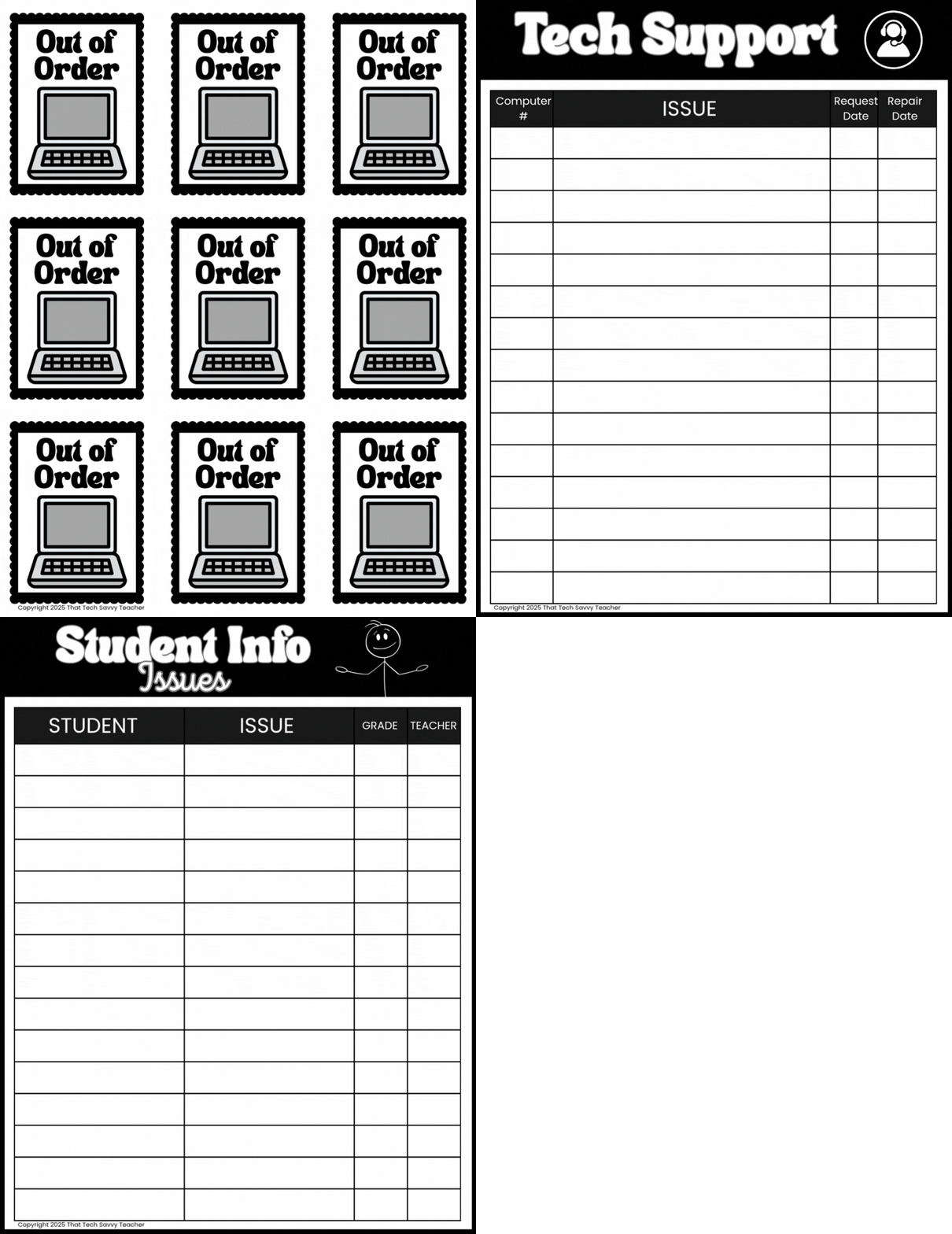
Out of Order signs to quickly label devices that need repair.
Tech Support Log to track devices that need troubleshooting.
Student Info Issue Log to keep track of login or account problems.
👉 If you'd like a done-for-you version of these printables, I’ve bundled my Out of Order signs and logs into an easy-to-use printable pack. Check i t out here.
Posters & Visuals That Reinforce Student Learning
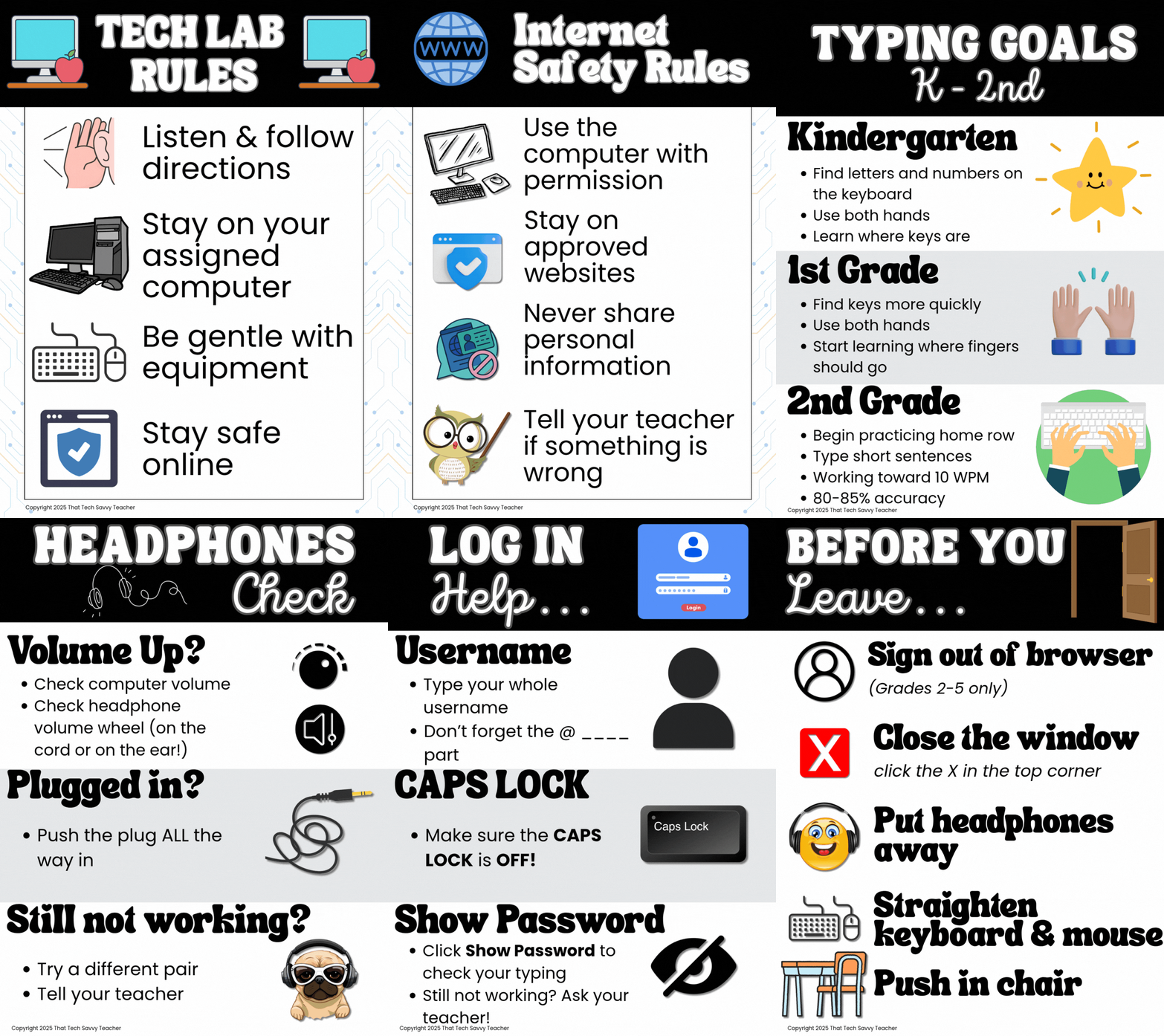
Visuals play a big role in classroom technology management. They reduce repeated questions and empower students to help themselves. Some of my go-to posters include:
Class rules
Typing expectations
"What to do if headphones don’t work"
"Can’t sign in?" login tips
Before You Leave Poster — A simple visual that reminds students how to log out, shut down, clean up, and prep for the next class.
Internet Safety Poster — Simple reminders: use the computer only with permission, stay on approved sites, don’t share personal information, and tell a teacher if something feels wrong.
These posters are ready-to-print PDFs that match my classroom design. No editing needed—just print and hang! Click here to get these posters.
Where to Get Support as a New Technology Teacher
One of the most helpful things I did during my first year was joining Facebook groups for tech teachers. It’s where I found support, ideas, and reassurance that I wasn’t alone in figuring this all out. If you’re looking for a helpful space to connect and ask questions, I’d love for you to follow my Tech Savvy Teacher Facebook Page!
Learning from other educators who understand your role is a great way to build confidence and find new things to try in your own classroom.
Student Engagement, Classroom Management & More
In my tech classroom, student engagement looks a little different than traditional group work or gamified stations. Because I create video lessons for every activity, students work at their own pace while I walk around, support those who need extra help, and monitor the class closely. This approach gives me the flexibility to check in with individual students naturally throughout the class period.
Some of my favorite ways to support engagement and build tech skills include:
Embedding digital citizenship and internet safety lessons for every grade level.
Using the same foundational resources each year, saving prep time and ensuring consistency.
Encouraging students to reflect on and organize their work using digital portfolios in Google Sites.
Using Google Forms for occasional check-ins or reflections on class topics.
Creating lessons that involve authentic use of tools like Google Docs, Slides, and Sheets.
If you're looking for inspiration or want to see examples of my lesson videos, check out my YouTube channel, where I post tech tutorials and classroom-ready video lessons.
Grab Your Free New Tech Teacher Checklist!
Want a printable version of the best practices, login tips, and digital tools mentioned in this post? I’ve created a free New Tech Teacher Checklist to help you stay organized during those hectic first weeks (and beyond!).
It includes:
Daily routines by grade level
Tech tips for classroom management
Login strategies and troubleshooting
Need ready-to-print visuals too? Check out my full Poster Pack for classroom rules, login tips, and more. Perfect for any specials teacher looking for easy, print-and-go designs!
Final Thoughts: You’ve Got This 💛
Final Thoughts: You Don’t Have to Do This Alone 💛
Technology teachers are often expected to figure things out as they go - new tools, new expectations, and new responsibilities - all while supporting hundreds of students. If you’re feeling stretched or overwhelmed, know this: that’s normal, and it doesn’t mean you’re doing anything wrong.
With strong routines, clear systems, and the right tech tools in place, your classroom can run smoothly and confidently - even on the busiest days. Over time, those systems will give you something every teacher deserves more of: time and peace of mind.
As I continue sharing what works in my own K–5 tech classroom, I’m also working on something new behind the scenes.
I’ll be creating a membership for technology teachers who want ready-to-use lesson plans, classroom resources, and systems that actually work - all in one place. It will be designed to save you time, reduce planning stress, and help your tech classroom run smoothly.
If you’re a tech teacher who wants support, structure, and resources you can trust - without reinventing the wheel every week - I’d love for you to be part of it.
The details are coming soon. If you’d like to be the first to know when it opens, make sure you’re on my email list.
You’re not just surviving as a new technology teacher - you’re building something meaningful, one system at a time. 🚀
