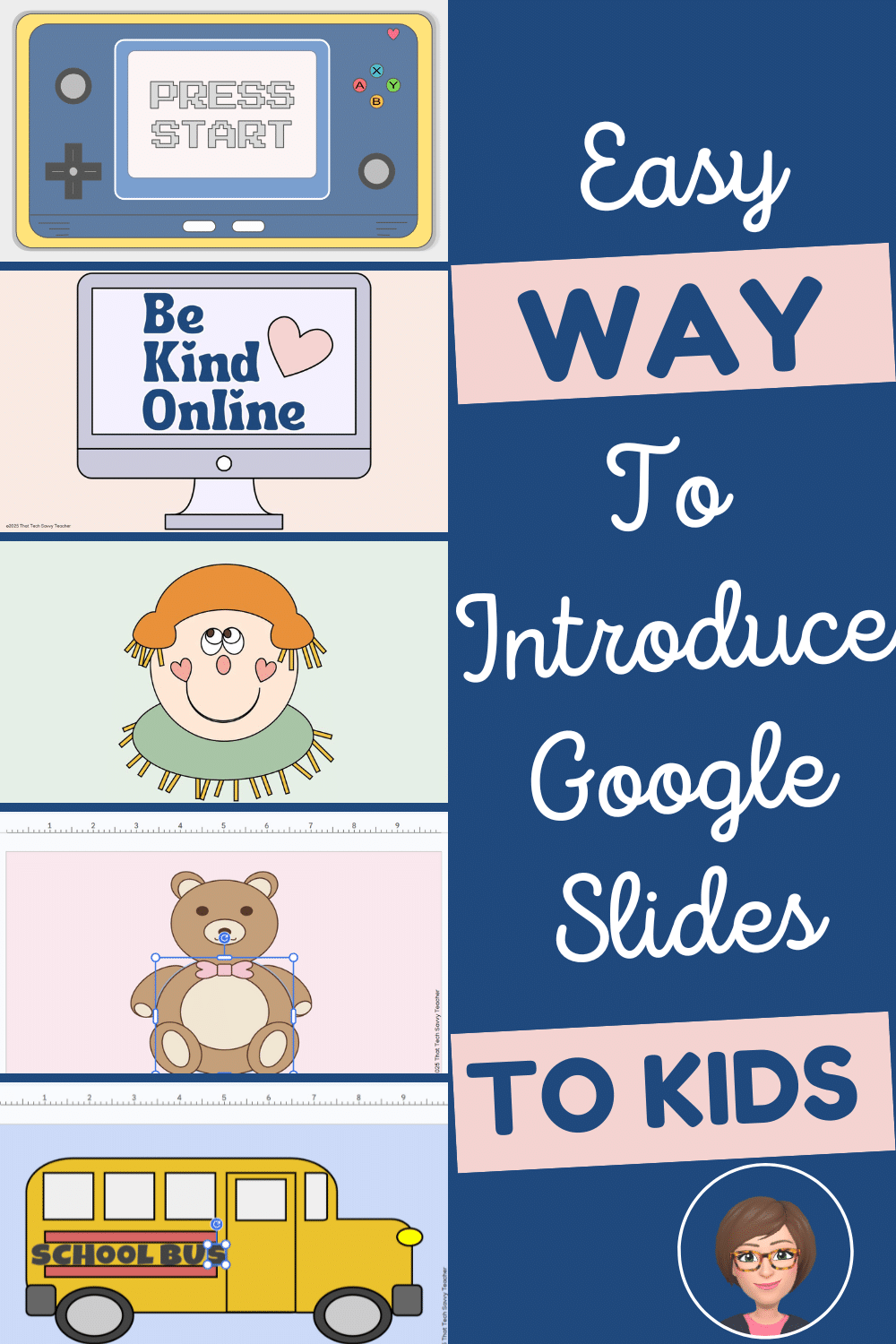
How to Introduce Young Students to Google Slides | Easy Classroom Activity
If you teach elementary technology, you already know that young students learn best when something feels fun and low pressure. They do not need a huge list of basic skills before they begin. In my tech lab, the easiest way to introduce students to google slides is by letting students explore a simple Click and Color Digital Coloring Page.
They think they are just coloring, but they are actually learning how Google Slides works in the most natural way possible.
Most of the time, I put the force-copy link on our class website, and once they open it, they click the first slide and get right to work. No big instructions. No step-by-step lesson. Just calm exploring. They move their mouse, click shapes, change colors, and get familiar with the layout of the screen without even realizing it.
Some classes immediately start trying out border colors. Some discover how to move shapes around. Some ask, “What is this” when they click a menu option. Others simply enjoy changing colors. Everything depends on the class, the individual student, and their confidence level. It is all very flexible, and that is what I love about using these pages at the beginning of the year.
Free “Press Start” Click and Color Digital Coloring Page
I created a free handheld-game Click and Color page that your students can try right away. It works in any web browser with a steady internet connection, and it is easy for young learners to open.
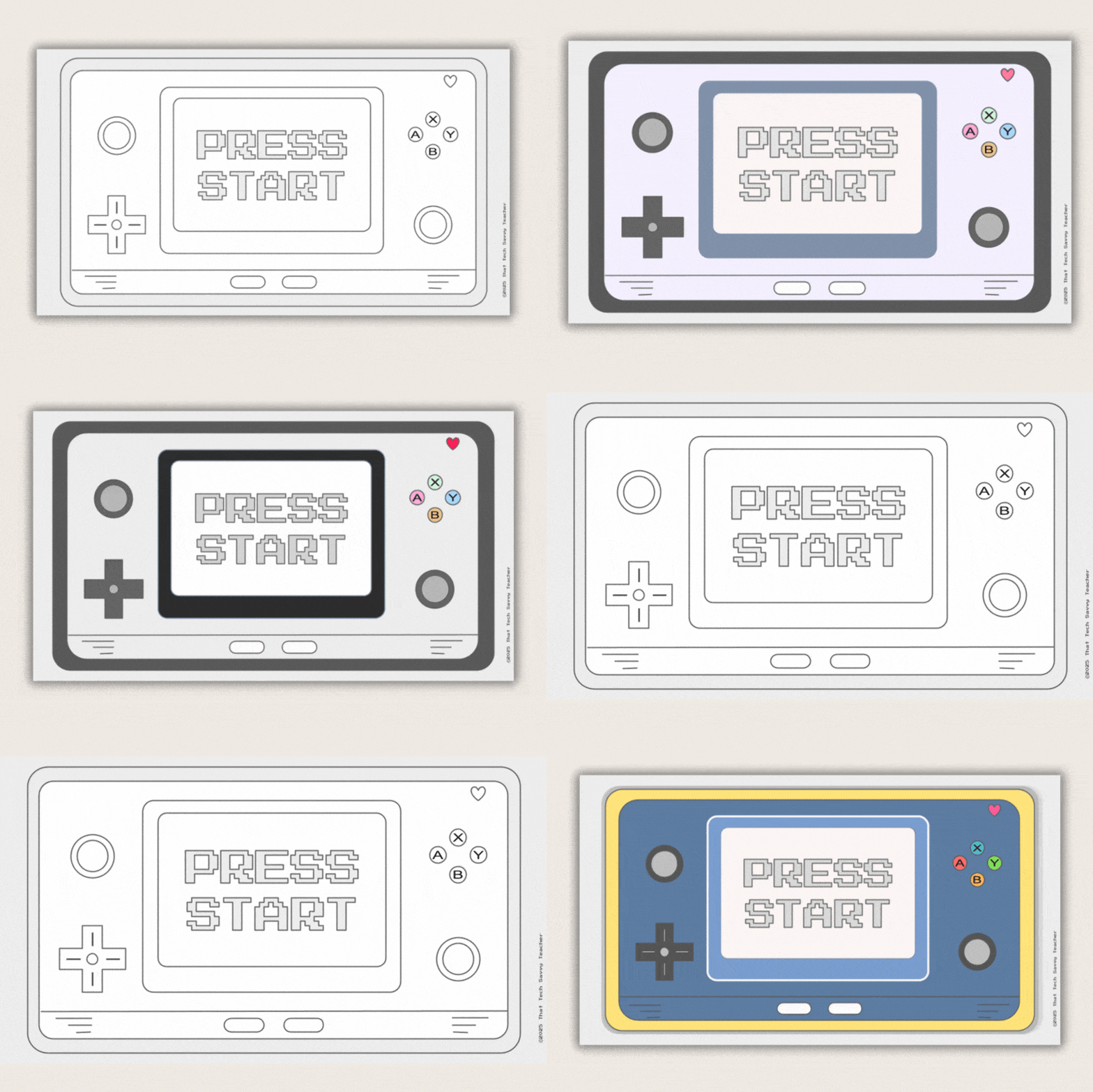
Get the free Press Start page here.
This is one of my favorite ways to ease students into Google Slides. It works for early finishers, warm-ups, sub plans, remote learning days, and homeschool use. It is simple, quick, and the kids love it.
Why Google Slides Works for Young Learners
This is how we introduce students to google slides gradually, ensuring they feel at ease.
Google Slides is part of Google Workspace, so it connects easily with their Google account and the other tools they use during the year like Google Docs, Google Forms, and Google Drive files. Everything saves in real time, which is such a relief when you teach large numbers of students across many grade levels.
At the younger grades, we keep things simple. Students are not adjusting page setup or changing page size. They are just learning how to click, color, and explore the screen. They begin noticing the slide layouts on the left side. They see what happens when they click a new slide. They learn how to undo when something moves. They practice selecting shapes without needing you to stop and explain the entire platform.
They learn Google Slides little by little. Calmly. Naturally. With almost no pressure.
Why Digital Coloring Pages Make the Easiest First Step
Click and Color digital pages are extremely simple, and that is the beauty of them. There are no text boxes to type in, nothing complicated to format, and nothing they can accidentally break. They click a shape, change the color, and instantly feel successful.
Because students feel comfortable, they naturally start asking their own questions.
Every year, I hear things like:
Why did this move?
How do I change it back?
What does this button do?
Can I try another color?
Why did this shape come forward?
Some groups are more curious than others, and that is alright. I follow their lead. If they find gradients or themes, great. If they stay focused on simple fill colors, that is just as helpful. Everything they discover sets them up for more success later when we begin real Google Slides presentations.
This early time in Slides is not about teaching everything. It is about helping them feel comfortable exploring.
My Classroom Story
When I prepare lessons, I always think about how to introduce students to google slides effectively.
Every year, Click and Color becomes one of the easiest and happiest parts of my beginning-of-year routine. Students feel confident right away. Even my youngest learners quickly figure out how the mouse cursor works, how to change colors, and how to undo when something slides out of place.
The engagement is amazing. When students open my website and see a new Click and Color Digital Coloring Page, they cheer. They think they are coloring, but they are actually practicing the little skills they will need when we start creating real slides and digital posters. It is a gentle way to introduce students to google slides without overwhelming them at the start of the year.
A Fun Activity for Every Grade Level
Even though Click and Color pages are simple, the interest does not stop with younger students. I use these activities with grades 1 through 5, and every group enjoys them. Older students often get just as excited as the younger grades. There is something relaxing about choosing colors and making small design choices, and it gives them a comfortable way to settle in before we move into bigger tech projects.
Many adults enjoy coloring too, so it is no surprise that students of all ages love a few minutes to click, create, and explore.
Skills Students Naturally Learn
With these pages, students begin to practice:
Clicking and selecting
Dragging and moving shapes
Undo
Changing color and border color
Simple design choices
Confidence with Google tools
Seeing the slides on the left side
Starting a new slide
Recognizing the difference between pieces on the screen
These early discoveries make our future lessons so much smoother. Later in the year, when we begin working on real slide presentations, students remember these first experiences and feel ready to try new things.
How I Share These Pages
I keep sharing simple on purpose.
Here is my process:
I open the Google Slides file.
I make sure there is only one coloring page on the slide.
I generate a force-copy link.
I add it to my Google Site that students use to open their activities.
Students click the link and begin coloring right away.
If you use Google Classroom, you can also attach the file and choose “Make a copy for each student,” or you can simply share the force-copy link. Both work easily and do not take a lot of time.
Try Click and Color Digital Coloring Pages in Your Classroom
Once your students try the free Press Start page, you might want more to rotate through the year.
I have created several Click and Color sets in Google Slides that match different themes and seasons.
Click and Color Starter Pack
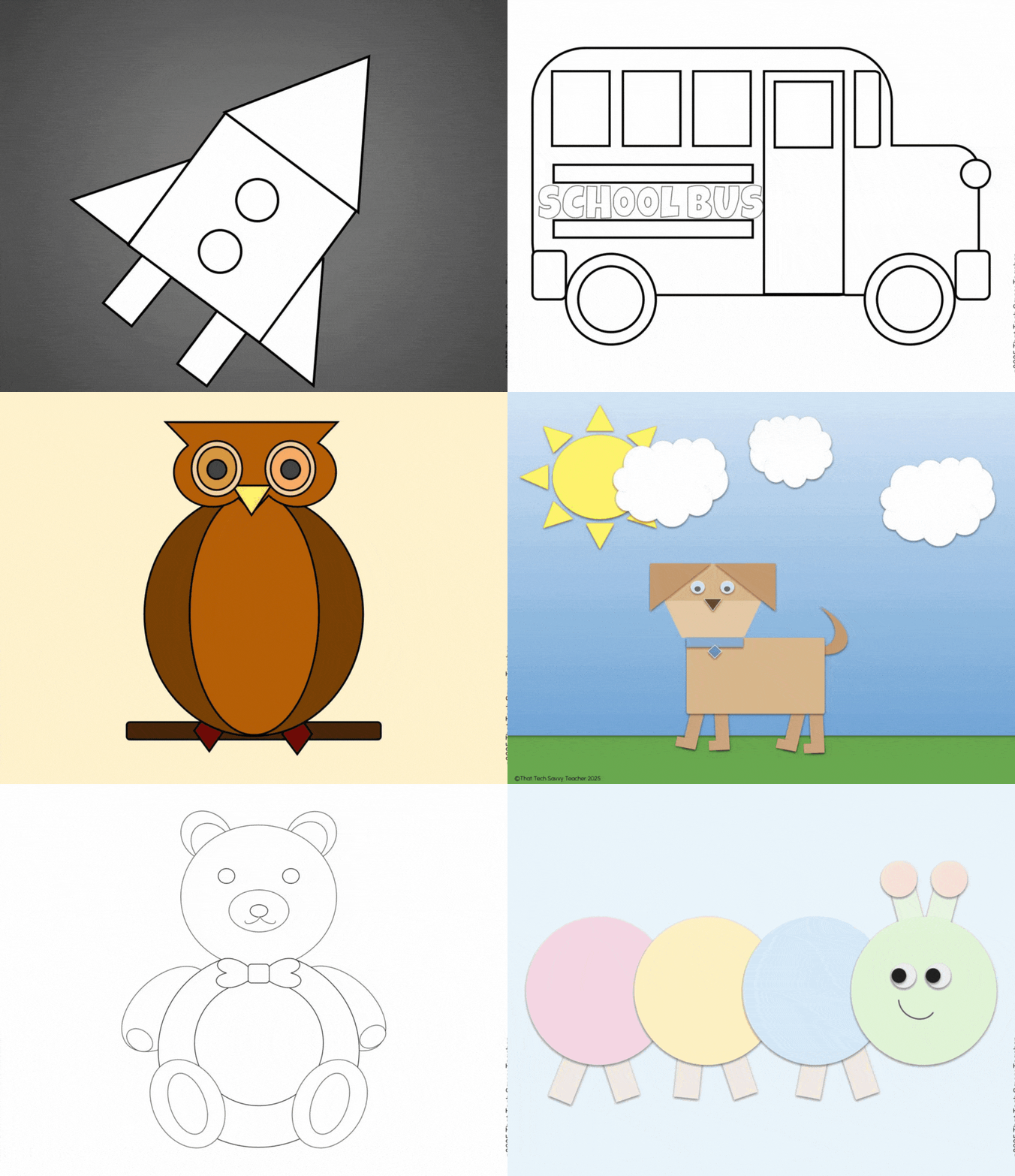
This set gives you several quick, student-friendly pages that work well at the beginning of the year.
Seasonal and Holiday Bundles
Current themed sets include:
Fall
Thanksgiving
Christmas
February or Valentine’s Day
March
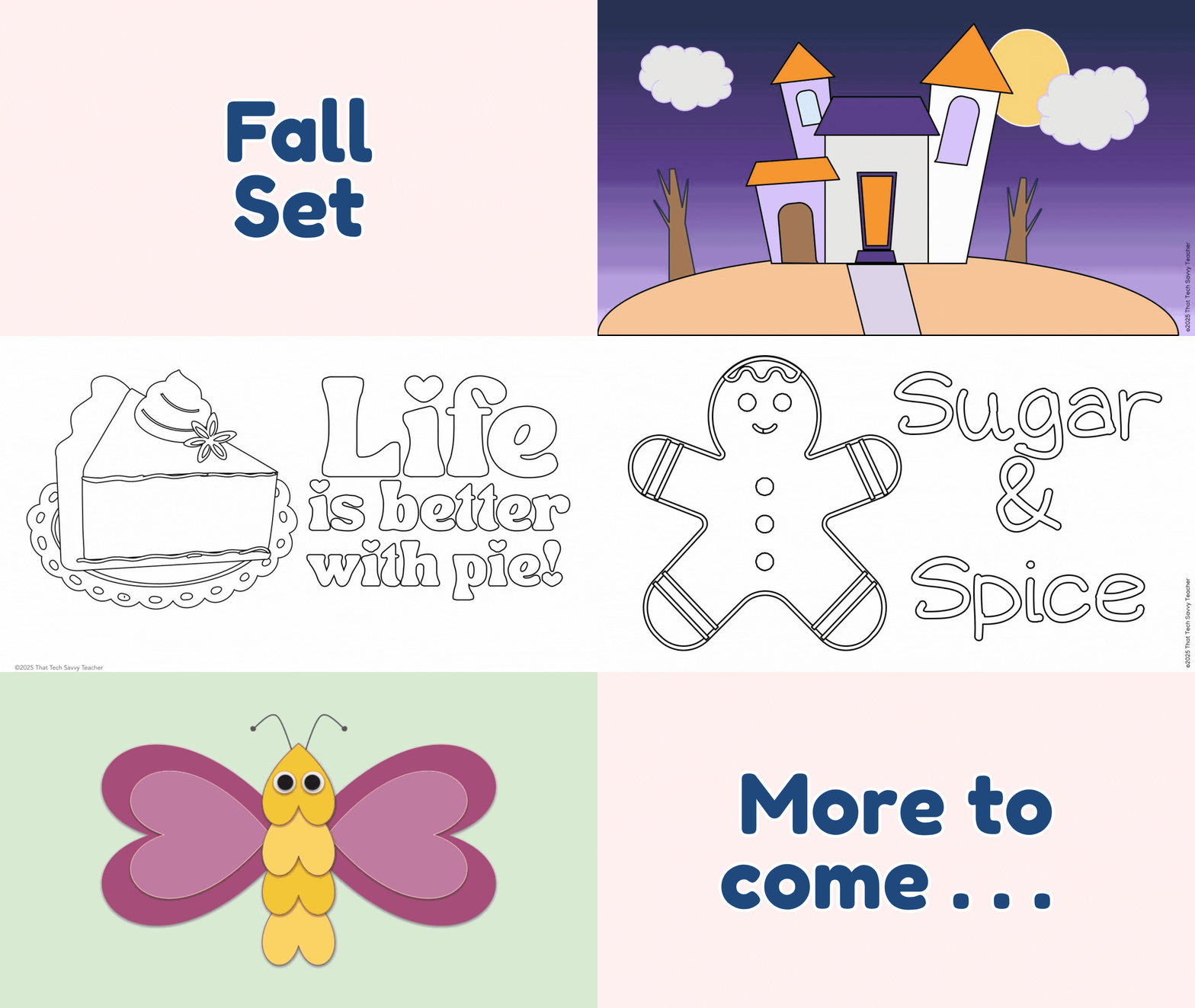
More monthly sets are coming. These work well in the computer lab, homeroom, centers, early finisher bins, and simple Google Classroom assignments. Students love the familiar themes, and you can use them all year long.
And do not forget to grab the free Press Start Click and Color page so you can try it with your class for the first time. It is an easy way to introduce Google Slides and build comfort with the platform before you begin bigger projects.
Want More Time-Saving Tech Ideas
If you want ready-to-use Google Slides activities, simple ideas for teaching tech skills, and classroom-friendly templates, you can join my newsletter. I share weekly tips to make your school year smoother and more efficient.